
Download Amateta Retail Suite
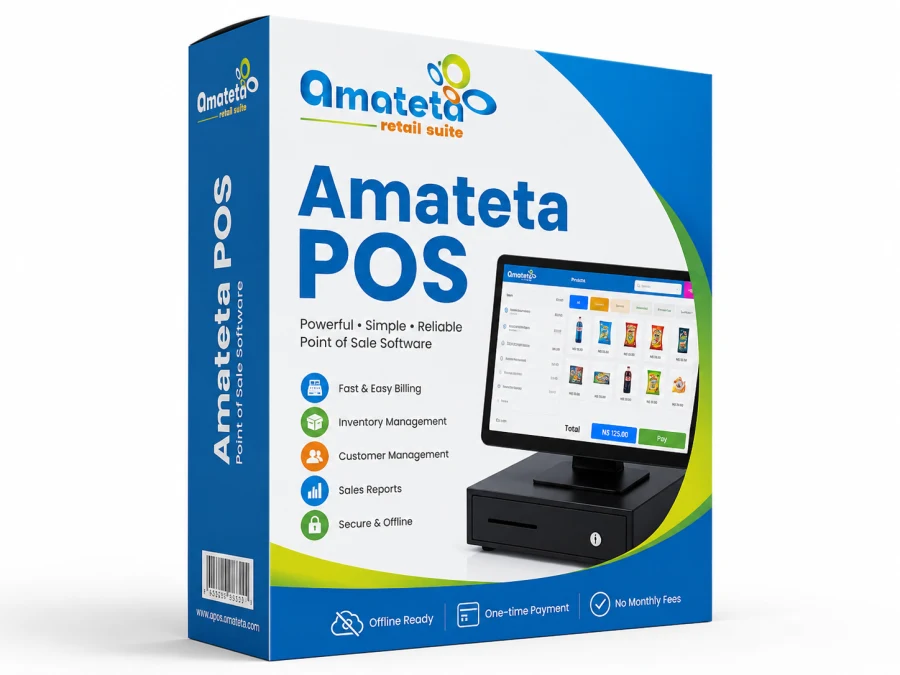
The full Point of Sale on your counter PC — lightning fast, secure, and it keeps selling even when the internet drops, syncing automatically when you're back online.
112.6 MB · Windows 10/11 (64-bit)
1. Install
Run the installer and follow the wizard. It takes about a minute — no technical setup needed.
2. Activate
Enter your licence key and the same email & password you use on this website. Your shop loads automatically.
3. Sell
Add your cashiers, and they sign in with just a username and PIN. Sell all day — completely offline.
How to install Amateta POS
Follow these once on each till computer. The whole process takes about five minutes.
Buy your plan & get your licence key
Create your account on this website and choose a plan — monthly, or the Lifetime licence once-off. Once your payment is approved we email you a licence key that looks like:
AMT-2026-8KJ4-LP92-XQ71
You can always find it again under Billing → My Desktop Licences after signing in.
Download & run the installer
Click Download for Windows at the top of this page and run the file when it finishes.
Windows may show a blue "Windows protected your PC" box. This is normal for new software — click More info, then Run anyway.
Activate the till
On first launch the app asks for three things:
- Your licence key
- Your email (the same one you used on this website)
- Your password (the same one too)
Press Activate & Sign In and your business, products and staff load onto the computer automatically. This is the only step that needs internet.
No internet on that computer? Click "No internet? Set up offline", send us the Device ID shown on screen, and we'll give you an activation code — or start a 14-day free trial.
Add your cashiers
Go to Staff and add each person with a name, a short username and a 4–6 digit PIN. They sign in at the till with just those two — quick and secure.
In Settings → POS Security you decide the rules: whether cashiers may use a password, whether a manager must approve opening a shift, and whether removing an item needs approval.
Connect your printer & drawer
Plug in your receipt printer and open Settings → Receipt printer. Pick your printer by name (or enter its IP for a network printer) and print a test receipt. The cash drawer plugs into the printer and pops open automatically after each sale.
Barcode scanners need no setup at all — plug them in and scan.
Start selling — online or off
Open the till, start a shift with your cash float, and sell. Everything keeps working with no internet. Whenever there's WiFi your sales, products and customers sync up so you can check the shop from your phone in the Back Office.
At the end of the day, cash up in Cash Register and print your Z-Report.
What you need
- Windows 10 or 11 (64-bit)
- 4 GB RAM (8 GB recommended)
- 500 MB free disk space
- Internet once to activate (or activate offline with a code)
- Optional: receipt printer, scanner, cash drawer
Built for the counter
Works offline
Keep selling during outages; everything syncs to the cloud when you reconnect.
Direct printing
Prints receipts straight to your thermal printer and pops the cash drawer.
Auto-updates
Always on the latest version — updates install themselves.
Installing on a POS / NCR terminal
Follow these steps once per till PC. Two downloads are needed: the Amateta installer and the Microsoft runtime it depends on. The desktop app prints to thermal printers and pops the cash drawer on its own — no QZ Tray needed for the desktop app.
1 Microsoft Visual C++ Redistributable (x64)
REQUIRED — install this FIRST. The till engine needs it. On a fresh Windows/NCR terminal it is usually missing, which makes the app fail to start (“application engine stopped unexpectedly”).
Download VC++ Redistributable (x64)Official Microsoft link · ~25 MB · run
vc_redist.x64.exe and accept the prompts. Skip if already installed.
2 Amateta Retail Suite — Windows installer
The desktop till itself. Run it after step 1. Creates a desktop shortcut and opens straight to the staff login.
Download Amateta Till (v1.8.20)
112.6 MB · Amateta-Retail-Suite-Setup-1.8.20.exe
Step-by-step (per terminal)
- Install VC++ Redistributable (x64) from the link above. (One time.)
- Recommended: add an antivirus exclusion for
C:\Program Files\Amateta Retail Suite\and%APPDATA%\Amateta Retail Suite\so the engine isn't quarantined. - Run Amateta Till installer → accept the default location → Finish.
- Launch from the new desktop shortcut. First launch takes ~30–60s (“Preparing application files…”) — this is one-time; later launches are instant.
- The app opens straight to the staff login. Sign in to verify.
- Connect & test hardware: receipt printer, barcode scanner, cash drawer, touchscreen.
Cash drawer won't open? It plugs into the printer's “DK” port with a drawer-trigger cable (not a phone cord); check the drawer's key-lock is unlocked and the voltage matches the printer (24V).
Don't have an account yet?
Create your free account, then download the till and start selling in minutes.
Start free trial